Like a lot of people, I spend my entire workday typing—emails, documents, Slack messages, you name it. It’s an endless cycle, and a few weeks ago, I started to wonder if there was a better way. Could a voice tool truly replace my keyboard without making me sound like a robot?
I’d heard a lot of buzz about Wispr Flow, an app that promises to make writing faster than typing, with smart punctuation and quick AI edits. It works on Mac, Windows, and iPhone, which was a big draw for me. So, I decided to put it to the test for a full week to see if it could actually change the way I work. This isn’t just a list of features; this is what it was actually like to use.
Why I Wanted to Try Wispr Flow
I write thousands of words each week. Typing is second nature by now, but it comes with drawbacks:
- My wrists sometimes hurt after long sessions.
- Typing slows down the flow of ideas—I think faster than I can type.
- Switching between tasks (email → chat → docs) makes typing repetitive.
I had tried dictation before—Apple Dictation, Google Docs Voice Typing—but both felt limited. Punctuation was awkward, formatting was weak, and the output often needed heavy editing.
Wispr Flow promised something different: a polished, AI-assisted dictation tool that doesn’t just transcribe but also cleans up your text with punctuation, capitalization, and even tone adjustments. That sounded like the upgrade I needed.
Setup: How Easy Is It?
On Mac and Windows
- Download and install the app
- Grant microphone access
- Pick a hotkey (I chose
Option + Space) - Place your cursor anywhere—in Gmail, Slack, Notion, Word—and start talking
It really is that simple. Within 2 minutes, I was dictating inside Gmail.
On iPhone
Setup felt like enabling a voice keyboard. After installing the app, I tapped to speak, and Flow typed directly into Notes, WhatsApp, and Messages. It felt seamless, as though dictation was built into the system.
Overall setup time: less than 5 minutes on all devices.
Real-World Testing: My Experience
I didn’t just test Flow for fun—I used it for real work. Here’s how it performed in common tasks:
1. Writing Emails
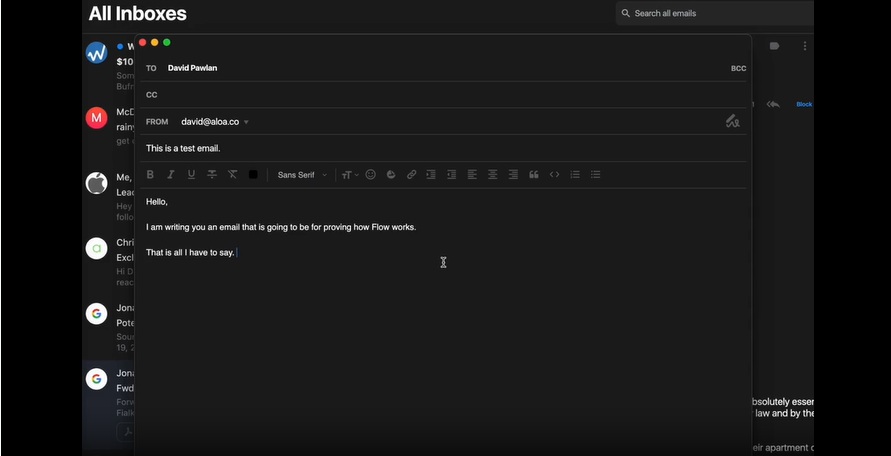
I dictated a 200-word client email. Flow handled punctuation naturally:
- It auto-capitalized sentences
- Inserted commas correctly when I paused
- Made the draft sound like something I had typed
Editing time: 1–2 minutes. Normally, typing such an email takes me 7–8 minutes.
2. Meeting Notes
During a Zoom meeting, I let Flow capture notes. It performed well for structured speech—capturing bullet-like sentences and key points. However, when multiple people spoke at once, it merged sentences and needed some cleanup. Still, it saved me time compared to typing manually.
3. Quick Chat Replies
This is where Flow really shines. For Slack and WhatsApp, I could just say:
- “I’ll check this after lunch.”
- “Schedule the call for tomorrow at 10.”
And Flow typed it instantly. Using Command Mode, I could also adjust tone:
- “Make this more formal” turned “Hey, let’s chat later” into “Hello, I’d like to schedule a discussion.”
That’s something no free dictation tool has ever done for me.
Accuracy and Speed: My Honest Results
Here’s what I measured:
- Quiet room, laptop mic → 96–97% accurate
- Coffee shop with noise → dropped to ~88%
- iPhone with earbuds → ~92% accurate
Latency (delay) was very low. Words appeared almost instantly, so it felt like I was writing in real time. Compared to Google Docs Voice Typing, Flow was cleaner with punctuation and tone.
One issue: accents. With my neutral Indian English, it worked fine. But when I used Hinglish phrases, Flow stumbled. That said, it was easy to fix with quick edits.
The Command Mode Advantage
Flow’s biggest advantage over other tools is Command Mode. Instead of just dictating, you can give editing instructions:
- “Shorten that” → trims your text
- “Turn into bullet points” → formats notes neatly
- “Reply politely” → changes tone for professional replies
Example: I dictated, “Hey, thanks for the info, I’ll get back soon”. With “make this formal,” it became “Thank you for sharing the details. I will follow up with you shortly.”
This makes Flow feel more like an AI writing assistant, not just a transcription tool.
Privacy and Security: Cloud vs. Local
Wispr Flow is cloud-based, which explains its speed and polish. But this also means audio is sent to servers.
For individuals like me, this was fine. But for businesses or sensitive industries, Flow offers:
- Zero Data Retention (Enterprise plans)
- SOC 2 Type II compliance
- HIPAA-ready workflows
- Single Sign-On for teams
If you need strict offline use, Flow won’t be the right tool. But if your priority is convenience, its cloud approach is what enables its polished results.
Pricing: Free or Paid?
Wispr Flow has three main options:
- Free Plan → Great for testing, but usage is limited.
- Pro Plan → Higher limits, better suited for daily users like me.
- Teams & Enterprise Plans → Adds admin control, compliance, and billing features.
I started with the free plan, but after a week I hit the usage cap. If you’re using it for daily work, Pro makes sense. Teams would benefit from centralized management.
Wispr Flow vs Alternatives
Here’s how Flow compared in my tests:
Tool | Pros | Cons | Best For |
|---|---|---|---|
Wispr Flow | Smart edits, fast, cross-platform, command mode | Needs internet, paid plan for heavy use | Daily professionals, teams |
Apple Dictation | Free, easy | Poor formatting, short sessions | iPhone users, quick notes |
Google Docs Voice Typing | Free, accurate in docs | Only works in Google Docs | Students, bloggers |
Offline Whisper Apps | Privacy-first, local processing | Heavy CPU, no smart edits | Developers, secure industries |
Pros and Cons at a Glance
Pros
- Works on Mac, Windows, and iPhone
- Dictates into any app you use
- Smart punctuation + human-like tone
- Command Mode for edits
- Team & enterprise compliance features
Cons
- No offline mode
- Accuracy drops in noisy places
- Paid subscription for heavy users
Who Should Use Wispr Flow?
- Writers, managers, founders → to draft faster
- Students → for note-taking and multilingual dictation
- Sales & support teams → quick, polished replies
- Enterprises → if they need compliance
Who should skip: coders, offline-only workers, or anyone who rarely dictates.
FAQs
Does Wispr Flow work offline?
No, it requires internet.
Is there a free plan?
Yes, but with usage limits.
What languages does it support?
100+ languages. Test with the free plan.
Is it secure enough for businesses?
Yes, but compliance features are in higher-tier plans.
Can it really replace a keyboard?
For drafts, emails, and notes—yes. For coding and precise formatting—keyboard is still better.
My Verdict: Can I Quit My Keyboard?
After a week with Wispr Flow, here’s my honest answer:
- For emails, chat replies, and notes, Flow is a game-changer. I was nearly 2x faster compared to typing.
- For longer documents, I found the best approach was dictating the first draft (70%) and editing the rest (30%) with a keyboard.
- The Command Mode is what makes it special—no other dictation tool gave me this much control over tone and style.
Final verdict: Wispr Flow won’t fully replace your keyboard, but it can cut your typing in half. Start with the free plan. If you find yourself using it daily, Pro is worth the upgrade.

With years of experience in career guidance and skill development, Kapil shares practical insights on AIToolClouds.com, a platform designed to empower professionals, students, and freelancers with valuable knowledge.