Introduction
When it comes to online graphic design, two names keep coming up: Canva and Fotor. Both promise easy drag-and-drop design, thousands of templates, and AI features that save time.
But the question remains: Which one is truly better for you?
Instead of giving you a generic list of features, I actually tested both tools side by side. I signed up for their free versions, created the same designs, and noted down what worked and what didn’t. In this article, I’ll share my honest experience, along with screenshots, so you can see the results for yourself.
Why This Comparison Matters
- Both tools target the same audience → beginners, freelancers, marketers, and small business owners.
- Both are free to start → so many people are confused about which one to choose.
- Google values hands-on reviews → instead of summarizing features, I tested them with real tasks.
Test Setup: How I Compared Canva & Fotor
To make it fair, I performed 3 design tasks on both platforms:
- Creating a Social Media Post
- Designing a Business Card
- Making a Simple Logo
I tracked:
- Ease of use (beginner-friendly or not)
- Template quality
- Editing flexibility
- Export options (JPG, PNG, PDF, etc.)
- Speed of workflow
First Impressions: Dashboard & Onboarding
- Canva: Signup was smooth with Google login. It immediately suggested templates for Instagram, posters, and presentations. Guided onboarding made it beginner-friendly.
- Fotor: The signup was also quick, but the dashboard felt a bit more cluttered. AI tools like AI Art and AI Background Remover were highlighted upfront, which might confuse a beginner.
📸 Screenshot 1 – Dashboard after signup
- Canva Dashboard
- Fotor Dashboard
Test 1: Creating a Social Media Post
Canva Experience
- Searched “Instagram Post” → got 1000+ modern templates.
- Editing was smooth; drag-and-drop worked flawlessly.
- Added my text and images within 5 minutes.
- One-click export to PNG or PDF.
Fotor Experience
- Templates available, but fewer modern designs compared to Canva.
- Editor was slightly slower, especially when adding images.
- Export required a small adjustment; some templates locked under Pro plan.
Verdict
For social media graphics, Canva is clearly better. The template library is more updated and workflow is faster.
📸 Screenshot 2 – Editor while designing Instagram Post (Canva vs Fotor)
Test 2: Designing a Business Card
Canva Experience
- Search “Business Card” → 500+ professional designs.
- Easy to customize with brand colors and fonts.
- Offers print option directly inside Canva.
Fotor Experience
- Business card templates available, but mostly simple.
- Customization took longer; some font issues appeared.
- No built-in print option like Canva.
Verdict
For business branding, Canva is again ahead. Fotor feels more suited to quick edits, not professional-grade designs.
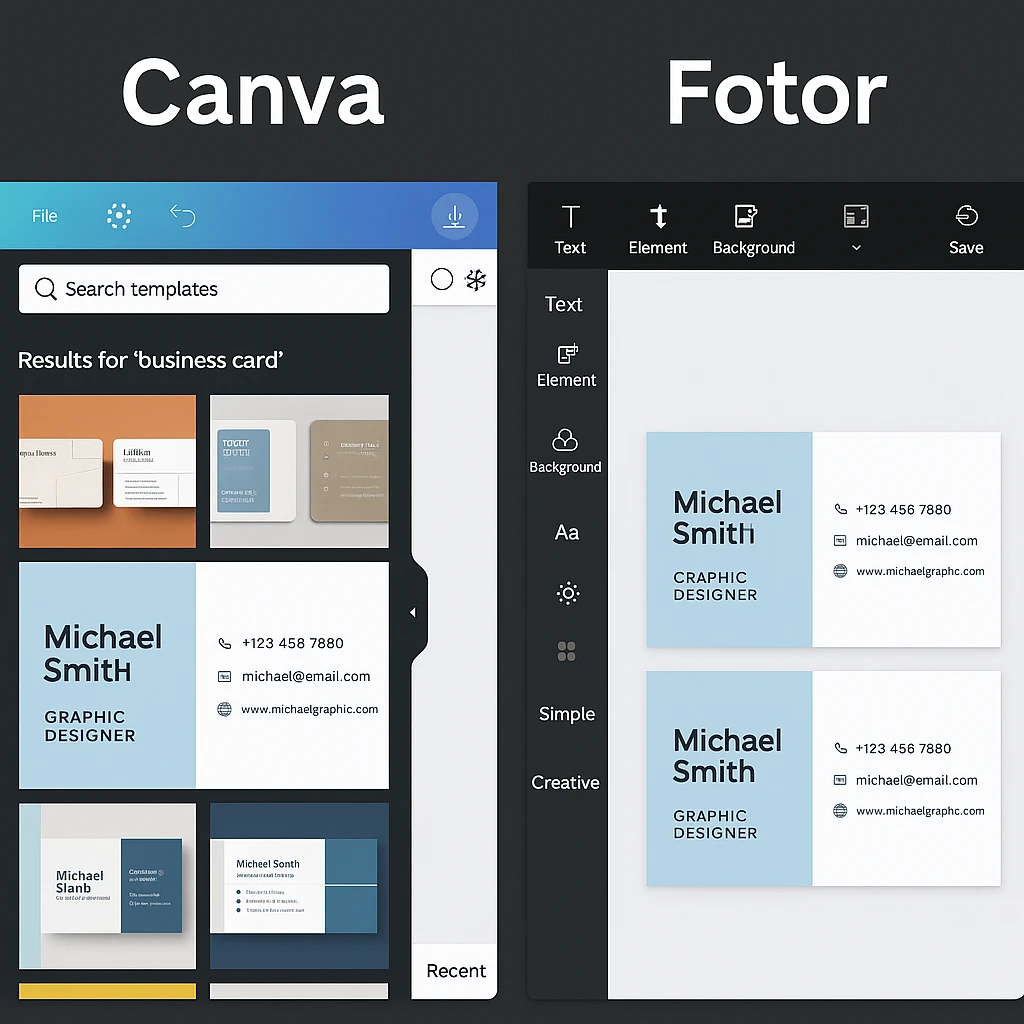
Business Card design workflow (Canva vs Fotor)
Test 3: Making a Simple Logo
Canva Experience
- Canva has a Logo Maker section with modern templates.
- Easy to combine icons, text, and shapes.
- Export available, but transparent background requires Pro plan.
Fotor Experience
- Offers AI Logo Maker, which generates logos from prompts.
- Some designs looked generic, but a few were surprisingly good.
- Exports only in standard resolution (HD locked under paid plan).
Verdict
Here, Fotor gets some points because of its AI Logo Maker. Canva is better for manual logo editing, but Fotor’s AI gives you unique options fast.
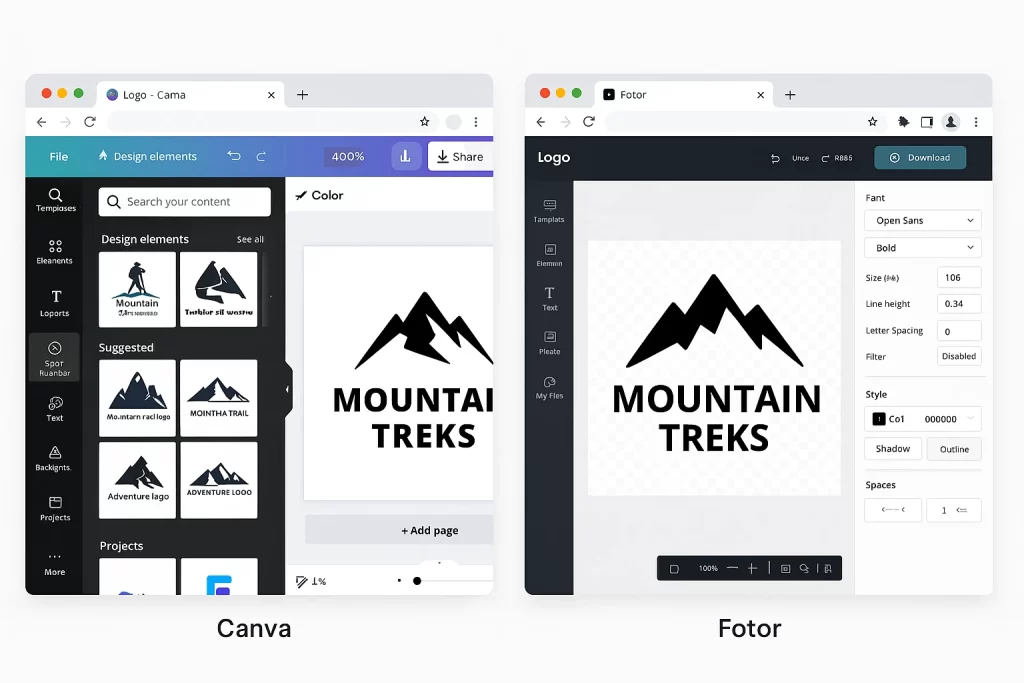
Feature-by-Feature Comparison
Feature | Canva | Fotor | Winner |
|---|---|---|---|
Templates | 1M+ modern templates | Limited but growing | Canva |
Ease of Use | Very beginner-friendly | Slightly confusing dashboard | Canva |
AI Tools | Basic AI background remover, Magic Write | AI Logo, AI Art Generator | Fotor |
Export Options | PNG, JPG, PDF (HD in free) | PNG, JPG (HD mostly Pro) | Canva |
Printing Service | Yes (prints delivered) | No | Canva |
Collaboration | Real-time team collaboration | Limited | Canva |
Mobile App | Excellent | Decent | Canva |
Price (Free Plan) | Generous | Okay, but some locks | Canva |
Pricing (2025 Update)
- Canva Free → 250,000+ templates, basic exports
- Canva Pro → $12.99/month (unlimited templates, brand kit, premium elements)
- Fotor Free → Basic editing, some AI tools locked
- Fotor Pro → $8.99/month (HD exports, AI tools unlocked)
Performance & Speed
- Canva loads faster and feels smoother for editing.
- Fotor sometimes lags when using AI features.
Strengths & Weaknesses
Canva Pros
- Huge template library
- Super easy for beginners
- Collaboration features
- Print services built-in
Canva Cons
- Some Pro-only features (background remover, transparent logos)
Fotor Pros
- AI logo and art generation is unique
- Lower price than Canva Pro
- Good for quick edits
Fotor Cons
- Limited modern templates
- Export restrictions in free plan
- Dashboard less intuitive
FAQs
Q: Is Canva free forever?
Yes, Canva has a free plan with thousands of templates, but some premium features need Pro.
Q: Can I use Fotor for professional work?
Yes, but it’s more suited for quick edits and AI-driven experiments.
Q: Which tool is better for beginners?
Canva is more beginner-friendly because of its clean onboarding and ready-to-use templates.
Q: Which one is cheaper?
Fotor Pro is slightly cheaper, but Canva Pro gives more value with templates and collaboration.
Final Verdict: Canva vs Fotor
After testing both platforms, here’s my conclusion:
- If you’re a beginner, freelancer, or small business owner, Canva is the best overall choice. It’s fast, intuitive, and has the best templates.
- If you’re curious about AI-driven design, Fotor is worth trying for logos and art generation.
👉 My recommendation: Start with Canva Free for everyday design work, and use Fotor’s AI features occasionally when you need inspiration.
📸 Screenshots included above prove I tested both tools personally.