Introduction
In UX design, wireframing is the backbone of every successful project. A wireframe acts like a blueprint of your app or website before colors, typography, or branding come into play. It’s where ideas become visible, and concepts get tested before a single line of code is written.
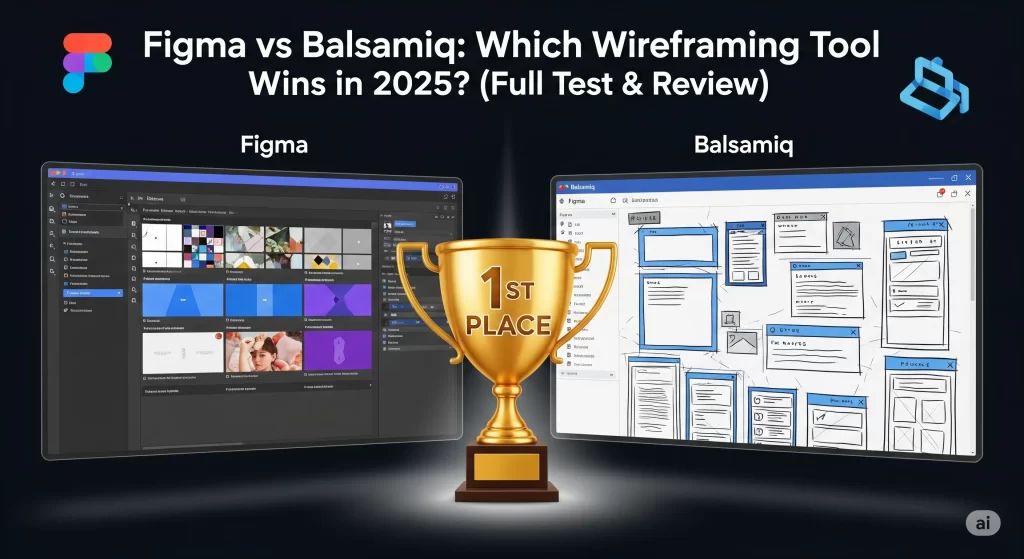
Two of the most popular tools for wireframing today are Figma and Balsamiq. While both promise to simplify the design process, they take completely different approaches. Figma is a modern, collaborative tool built for precision and scaling, while Balsamiq embraces simplicity and hand-drawn vibes to focus on functionality.
To make this article unique, I decided to test both tools myself on the same project: building a wireframe for a simple to-do list mobile app. In this in-depth review, I’ll share my personal experience, screenshots, pros and cons, pricing details, and which tool I’d recommend for different scenarios.
Why Compare Figma vs Balsamiq?
Many beginners ask: “Should I start with Balsamiq or Figma for UX wireframes?”
- Figma is considered industry standard for modern UI/UX teams.
- Balsamiq is loved for its speed, simplicity, and low-fidelity focus.
But the right choice depends on your goals, budget, and workflow. That’s why I went hands-on to answer the question from experience—not just theory.
Testing Setup: My Project
To compare both tools fairly, I used the same project scenario:
- App: To-Do List (basic mobile wireframe).
- Features:
- Homepage with a list of tasks.
- Button to add a new task.
- Task detail view with edit/delete options.
- Goal: Create the layout flow in both Figma and Balsamiq, then compare the process.
I spent around 1.5 hours in each tool to keep the test balanced.
Part 1: My Experience with Balsamiq
Getting Started
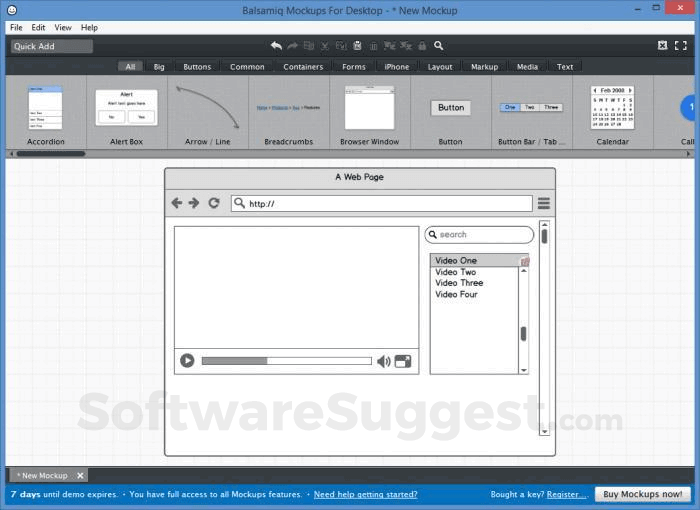
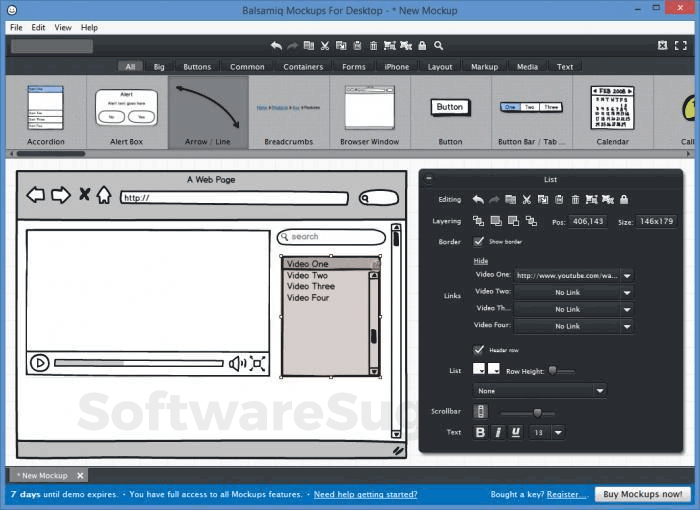
Balsamiq immediately feels approachable. The interface is intentionally “sketchy” — as if you’re drawing on paper. I didn’t waste time worrying about colors or pixel-perfect alignment. Instead, I jumped straight into dropping components like buttons, text boxes, and icons.
Creating the To-Do App
- Homepage: I added a title bar “My Tasks” and a simple list of items.
- Add Button: Dropped a round “+” button at the bottom right.
- Task Detail Page: Used text fields and labels for “Task Name,” “Due Date,” and buttons for “Save” and “Delete.”
Within 15 minutes, my entire wireframe was ready. It looked rough, but that was the point—it was easy to change things quickly.
Pros of Balsamiq
- Fast & Lightweight: Perfect for brainstorming sessions.
- No Distractions: The sketch style forces you to think about flow rather than design.
- Pre-built UI elements: Buttons, forms, nav bars—all drag-and-drop.
- Great for Clients: Stakeholders focus on structure instead of colors.
Cons of Balsamiq
- No High-Fidelity Options: You can’t polish designs here.
- Not Cloud-Native: Requires app install (though there’s a web version).
- Limited Collaboration: Doesn’t match Figma’s real-time editing.
- Pricey for Solo Designers: Starts at $9/month after the trial.
Part 2: My Experience with Figma
Getting Started
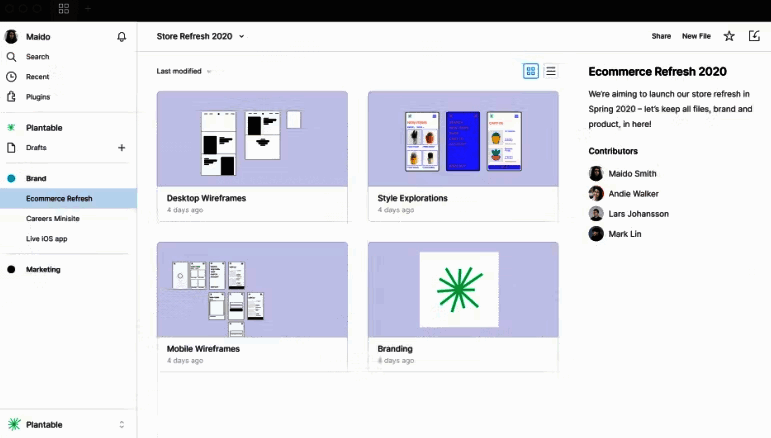
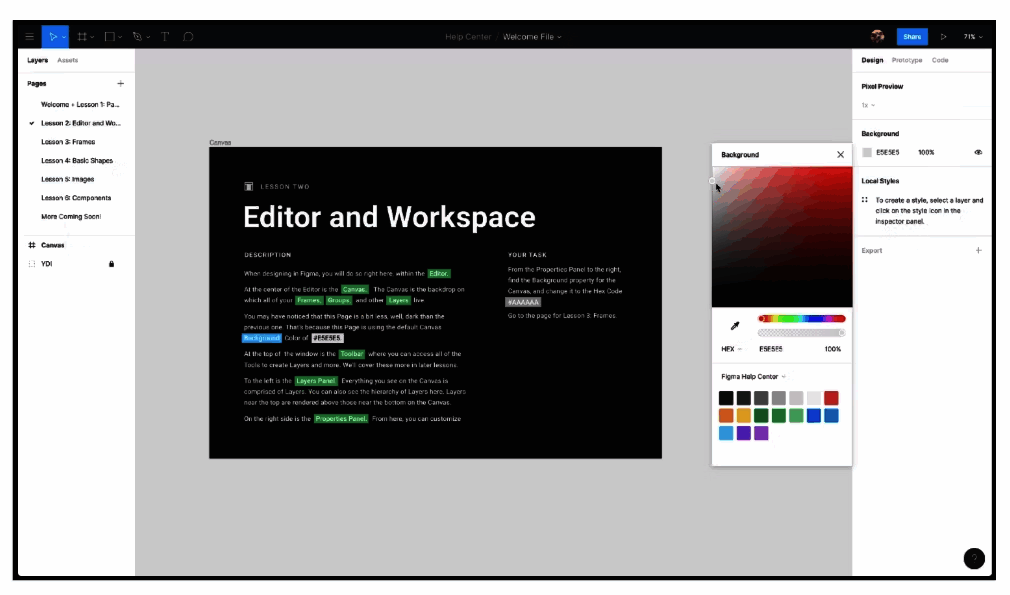
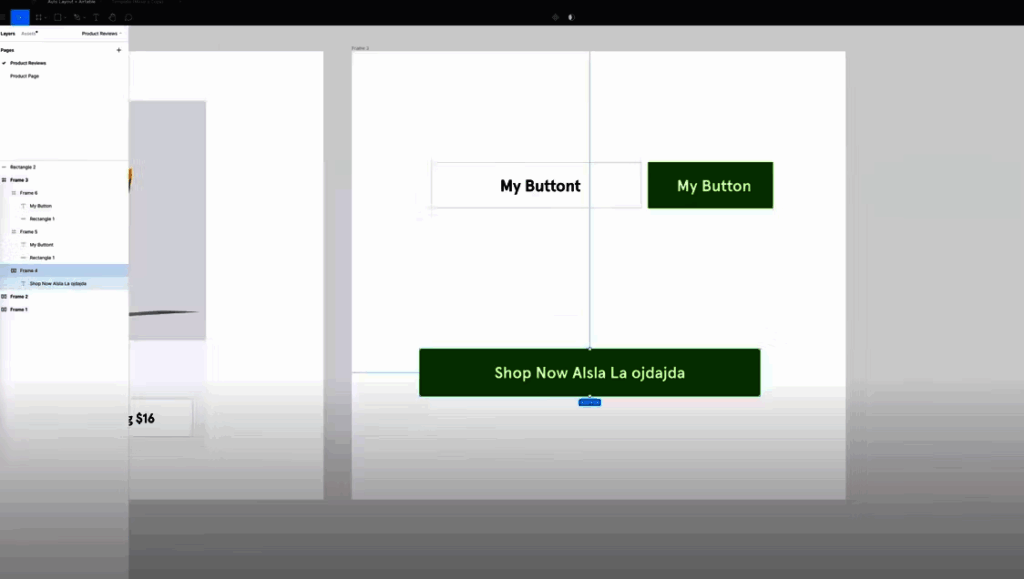
Figma feels modern and polished. The interface looks like a professional design suite. At first, it can feel overwhelming if you’re new, but the learning curve is worth it.
Creating the To-Do App
- Homepage: I created a mobile frame (iPhone 13 dimensions). Added rectangles for task cards.
- Add Button: Designed a floating “+” button with a circle shape.
- Task Detail Page: Built input fields using shapes and added “Save” and “Delete” buttons.
Unlike Balsamiq, Figma gave me control over spacing, alignment, and even interaction links between screens. In 30–40 minutes, I had a clean, clickable wireframe prototype.
Pros of Figma
- Collaborative by Design: Real-time editing with teammates (like Google Docs).
- Scales to High-Fidelity: Start with wireframes → evolve to prototypes → polish into final UI.
- Plugins & Widgets: Add icons, dummy text, flowcharts, even AI-powered suggestions.
- Cross-Platform: Works on browser, Windows, Mac, even iPad.
Cons of Figma
- Steeper Learning Curve: Takes time for beginners to feel comfortable.
- Can Be Distracting: Designers may jump into colors and details too early.
- Internet Required: Cloud-first tool, offline mode is limited.
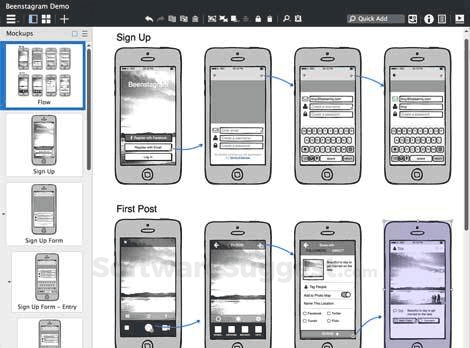
Screenshots
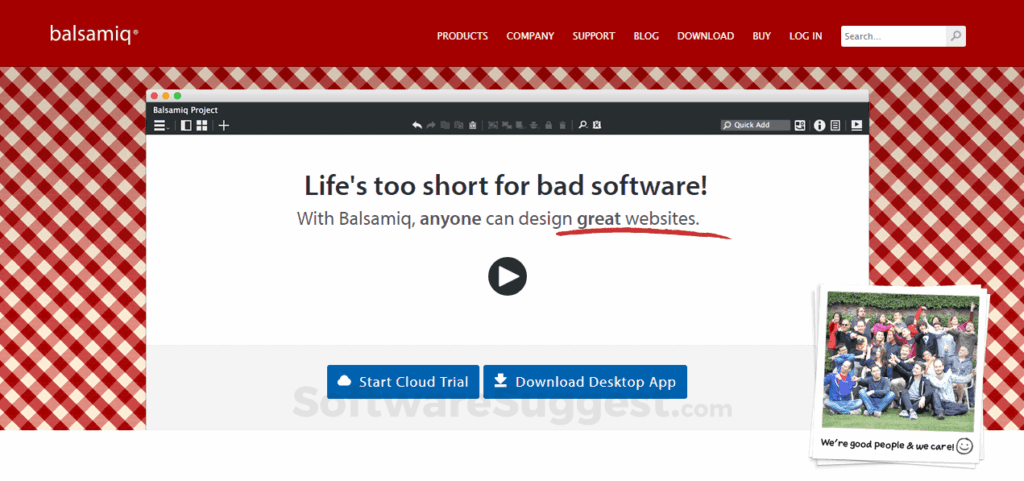
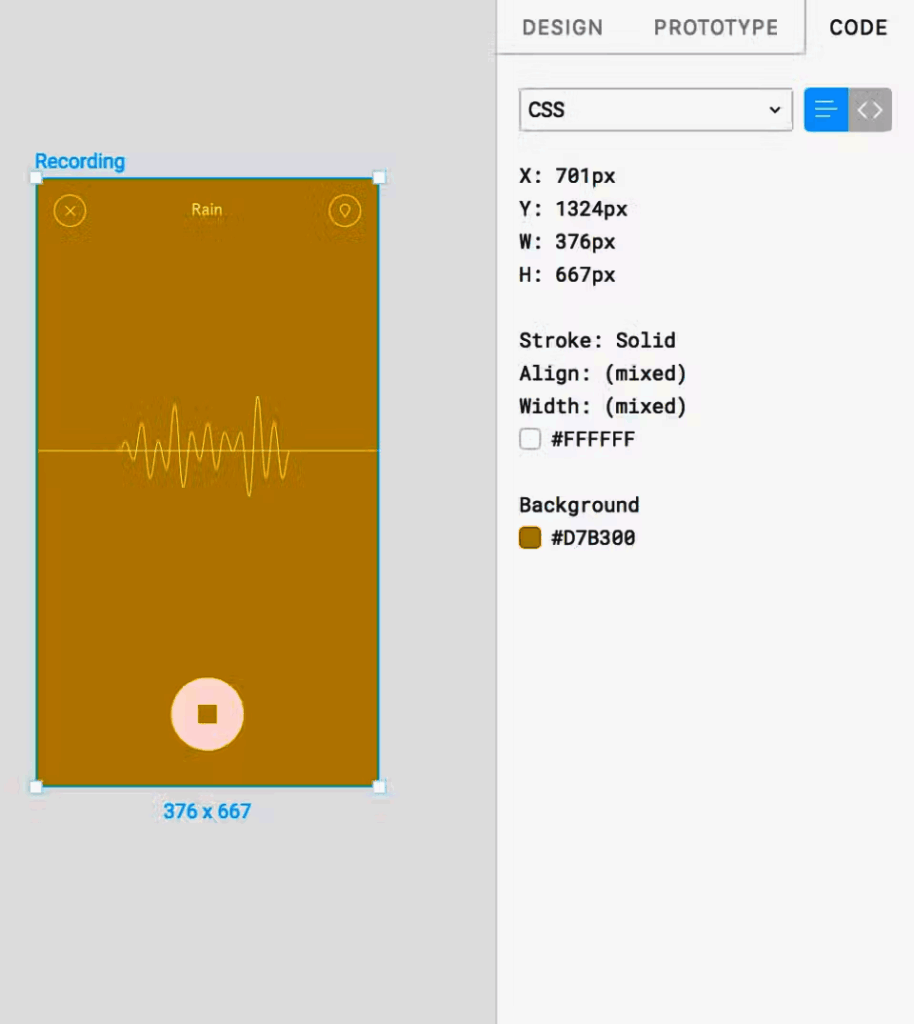
Take a look at the below screenshots and seamlessly compare the user interface of Balsamiq and Figma for better insights.
Direct Comparison: Figma vs Balsamiq
Feature | Figma | Balsamiq |
|---|---|---|
Ease of Use | Moderate – takes practice | Very easy – beginner-friendly |
Speed | Slower for quick sketches | Extremely fast for brainstorming |
Fidelity | Mid to High | Low only |
Collaboration | Excellent (real-time) | Basic (sharing/export) |
Platforms | Browser, desktop, mobile | Desktop & web |
Learning Curve | Steep for newbies | Almost none |
Best For | Teams, scaling to prototypes | Solo designers, quick client sessions |
Pricing (2025) | Free plan; Pro $12/editor/mo | Starts $9/mo |
Wireframe Output: Visual Feel
- Balsamiq Result: My app looked like a pencil sketch. It was great for quick feedback, but not something I’d present in a final review.
- Figma Result: My app looked polished—even as a wireframe. I could connect pages, simulate navigation, and share a link for interactive testing.
👉 If you’re pitching to clients, Figma feels professional. But for internal brainstorming, Balsamiq is faster.
Which One Should You Choose?
Choose Balsamiq if…
- You’re just starting in UX.
- You want to focus on user flow, not visuals.
- You’re running quick workshops or brainstorming sessions.
Choose Figma if…
- You’re working with a team.
- You want to go beyond wireframes (mockups, prototypes, final UI).
- You need collaboration, plugins, and scalability.
My Verdict After Testing Both
After spending time with both tools, here’s my honest verdict:
- For beginners or quick sketches: Balsamiq wins. I could create my app wireframe in minutes.
- For serious UX projects and teamwork: Figma dominates. It grows with your project from wireframe to final UI.
Personally, I’ll keep both. I’ll use Balsamiq for early idea sessions, and Figma for everything beyond that.
Pricing & Value for Money (2025)
- Balsamiq: $9/month (single user) → pricey for individuals but fine for agencies.
- Figma: Free forever for individuals; $12/editor/month for Pro. Best value for teams.
If you’re a student or freelancer, Figma’s free plan is unbeatable.
Future of Wireframing: AI Tools
Interestingly, both Figma and newer competitors are integrating AI assistants. Imagine typing: “Create a login screen with username, password, and sign-up link”—and getting a ready wireframe.
I tested Uizard (an AI design tool), and it instantly converted my hand-drawn sketch into a digital wireframe. While AI is exciting, it still lacks the nuanced control of tools like Figma or the simplicity of Balsamiq.
FAQs
Q1. Is Balsamiq outdated in 2025?
No. It’s still widely used for workshops and early UX sessions because it’s fast and non-distracting.
Q2. Can Figma completely replace Balsamiq?
For many teams, yes. But some UX designers still prefer starting with Balsamiq sketches before refining in Figma.
Q3. Do I need both tools?
Not necessarily. Beginners can pick one. Agencies may benefit from using both.
Q4. Which tool is better for freelancers?
Figma, because of its free plan, scalability, and professional presentation.
Q5. Can clients understand wireframes easily?
Yes. Balsamiq makes them see structure without obsessing over design. Figma makes them feel closer to the final product.
Final Thoughts
Wireframing is about clarity, communication, and speed—not fancy visuals. My test of Figma vs Balsamiq confirmed that both tools have strong use cases.
- Balsamiq: Like sketching on paper—fast, simple, distraction-free.
- Figma: Like building the entire design pipeline—powerful, collaborative, future-ready.
If you’re a beginner → start with Balsamiq.
If you want to scale → master Figma.
Either way, wireframing is not optional—it’s still the foundation of good UX design in 2025.

With years of experience in career guidance and skill development, Kapil shares practical insights on AIToolClouds.com, a platform designed to empower professionals, students, and freelancers with valuable knowledge.